
People
The People page is the operational heart of the Users tab. While Overview shows you the most urgent individuals, People is the searchable, filterable directory of every user Sift has ever observed across your connected platforms, and it's where you go when you want to actually find, study, or act on a specific person.
At a glance
| Searchable, filterable directory of every observed user | ✅ |
| User table: score, lifecycle, badges, user tags, volume, sentiment, actions | ✅ |
| Search by name, email, or username (saved in the URL) | ✅ |
| Filter by platform, user tag, lifecycle, badges, value-score range | ✅ |
| Custom fields you can add, filter by, and edit per user | ✅ |
| Profile drill-in with summary, tags, custom fields, past interactions | ✅ |
| Merge split identities into one profile | ✅ |
What you're looking at
Every chart and focus list elsewhere in the product ultimately deep-links into People with the matching filter pre-applied, so this is also the surface that ties the rest of the Users experience together. If you arrived here from a triage card, the chips above the table show exactly what's narrowing the list.

The user table
Users are rendered in an infinite-scroll table, sorted by 30-day message volume by default. Each row condenses everything you need to qualify a person at a glance into a single line.
| Column | What it shows |
|---|---|
| User | Avatar, display name, verified check, and user handle. |
| Platform | Icon for the platform the user originates from (Twitter, Instagram, Facebook, Discord, TikTok, YouTube, WhatsApp, LinkedIn, Threads, Telegram, App Store, Google Play, and others). |
| Score | The user's value score (0–100), shown as a horizontal meter plus the numeric value. Sortable. |
| Lifecycle | Where the user sits in the engagement lifecycle: New, Casual, Active, Engaged, Power, Lapsing, or Dormant. |
| Badges | Up to three top-priority badges that describe how the user behaves (e.g. Brand advocate, Power user, Mega influencer, Viral post, Lapsing, Spam risk). |
| User tags | The user tags on the person, applied by AI or added by your team. |
| Volume | Total messages from this user in the last 30 days, formatted compactly (e.g. 1.2k). |
| Sentiment | Average sentiment over the last 30 days, color-coded as Negative, Neutral, or Positive. Sortable. |
| Actions | Number of Sift actions associated with this user in the last 30 days. |
How to read it: sort by Score to find your most valuable people, or by Sentiment to surface the angriest. A high score with negative sentiment is a high-value customer at risk, the kind of row worth opening immediately.
Search
A search box at the top filters the table by name, email, or username in real time. Search lives in the URL, so a search result is shareable as a link.
Filters
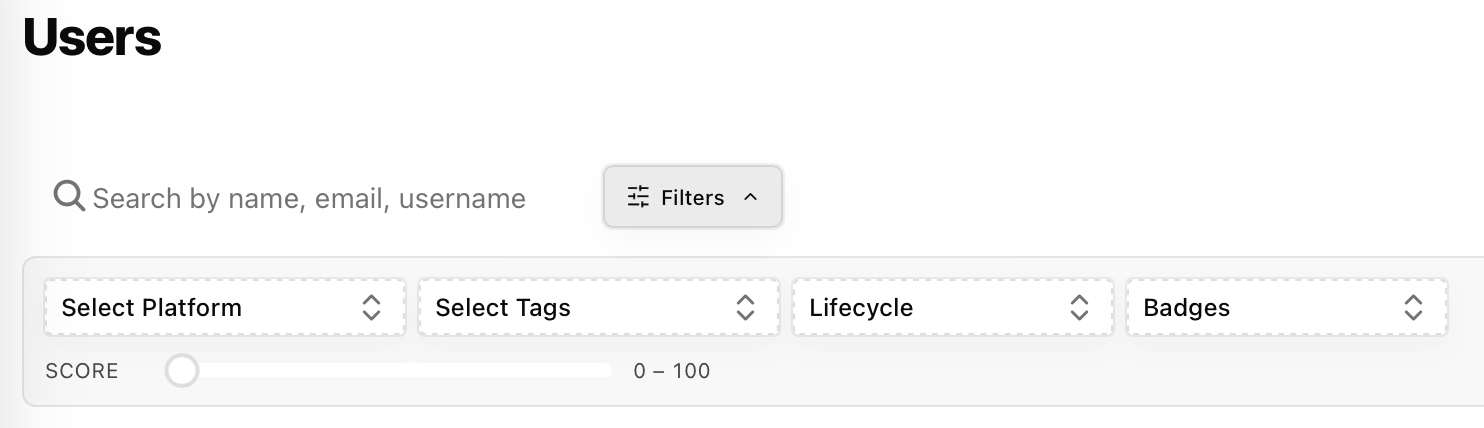
Clicking Filters opens a collapsible panel with the full filter set. The toggle button shows a counter chip when any filters are active, and the panel auto-opens when filters are present so you always know what's narrowing the list. The available filters are:
- Custom fields: Any custom field you've added to user records, with the appropriate operator for the field type.
- Platform / Source: One or more platforms (Twitter, Instagram, Facebook, Discord, and more).
- User tags: One or more user tags. The filter shows only the people who have the selected tags.
- Lifecycle: One or more lifecycle stages (New, Casual, Active, Engaged, Power, Lapsing, Dormant).
- Badges: One or more value badges (Brand advocate, Mega influencer, Viral post, Spam risk, and the rest of the badge library).
- Value score range: A min–max range on the 0–100 value score.
Every active filter shows up as a removable chip above the table, alongside chips for the current search term or deep-linked triage bucket. A Clear all button next to the chips resets every filter at once.
Custom fields
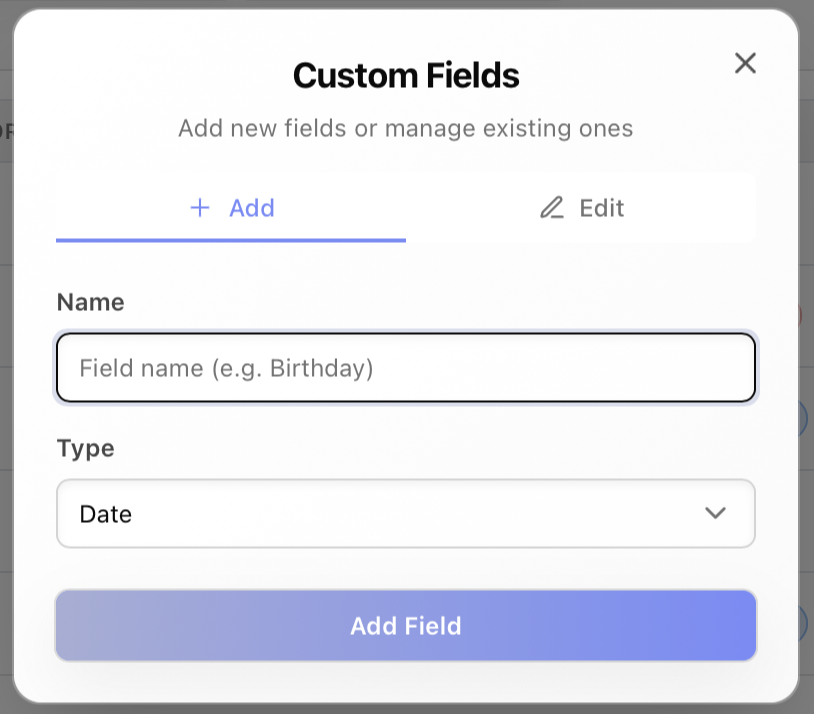
The Manage custom fields button in the top right opens a dialog where you can add, rename, or remove custom fields on user records: a CRM ID, an account tier, or any internal classification you want to attach to a person. Once a custom field exists, it becomes available in the Filters panel and on every user profile, so you can both filter the table by it and read or edit it per user.
Profile drill-in
Clicking a row opens the user's full profile in a resizable preview panel on the right side of the page. The drill-in is also openable directly via URL, so any profile is a shareable link. A profile contains:
- Profile card: Avatar, name, handles, platform, location, bio, verification status, and external links.
- Merge: A workflow for merging two profiles when Sift has split a single real-world user across multiple identities.
- Summary: A Sift-generated summary of who this user is, how they've engaged with your brand, and what's notable about their behavior.
- Description and user tags: Free-text description plus the user's tags. You can add or remove user tags here.
- Custom fields: All custom fields you've defined on user records, editable inline.
- Past interactions: A timeline of every message, comment, and action involving this user across all connected platforms.