# AI (/docs/configure/ai)

The **AI** category, also called **AI Studio**, configures how Sift's AI understands and acts for your organization. It has six pages: **Overview**, **Voice & Tone**, **Business Context**, **Learned Patterns**, **Triage**, and **MCP Connections**.

## Overview [#overview]

The **Overview** page holds the **Brand Profile** - the context every other AI Studio stage, and Sift's filtering and tagging more broadly, grounds on. It's a single form: **Industry**, **Competitors**, **About Your Business**, and **What's Worth Acting On**. Filling this out thoughtfully is the single highest-leverage thing an admin can do to improve the quality of every downstream AI feature. See [Brand Profile](/docs/sift-ai/ai-studio/brand-profile) for the full walkthrough.

## Voice & Tone [#voice--tone]

The **Voice & Tone** page teaches Sift how your brand sounds, so every AI-drafted reply reads like your team wrote it - a written description, a "Generate from your sent replies" option, a Things to Avoid list, and a separate override for public posts and comments. Off by default until you turn it on. See [Voice & Tone](/docs/sift-ai/ai-studio/voice-and-tone).

## Business Context [#business-context]

The **Business Context** page manages the knowledge-base contexts Sift's AI draws from when drafting replies or answering questions in SiftGPT - your own FAQs, help docs, and product pages. See [Knowledge Base](/docs/sift-ai/knowledge-base) for the full walkthrough.

## Learned Patterns [#learned-patterns]

The **Learned Patterns** page is Sift studying your own team: it watches how agents edit AI-drafted replies and proposes new voice rules, which apply only once accepted. See [Learned Patterns](/docs/sift-ai/ai-studio/learned-patterns).

## Triage [#triage]

The **Triage** page controls how aggressively Sift auto-closes low-relevance content, plus two additional signal-detection tools:

* **Auto-Close Strategy** - one of four strategies (**Disabled**, **Conservative**, **Standard** (default), **Aggressive**) controlling how confidently the AI must judge content irrelevant before auto-closing it. DMs are never auto-closed, regardless of strategy.
* **User rules** - tell Sift what to watch for on people; a built-in impersonator-detection rule ships on by default, and you can add your own.
* **Signal flags** - tell Sift what to watch for in content; a match applies a signal tag during synthesis for filtering and reporting, without affecting scoring or auto-close.

See [AI Filtering](/docs/sift-ai/ai-filtering) for the Auto-Close Strategy in more depth.

## MCP Connections [#mcp-connections]

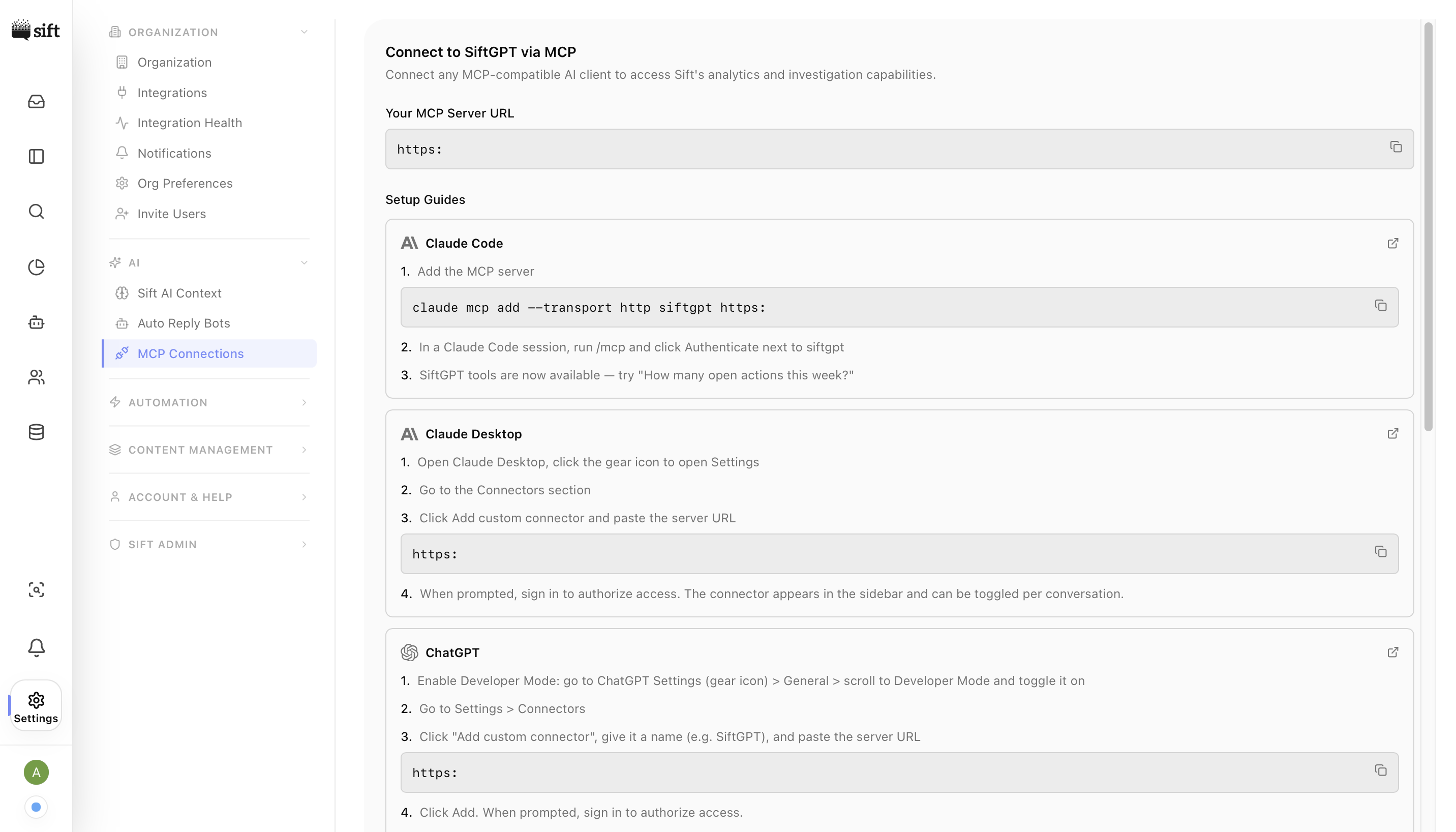
The **MCP Connections** page lets you connect any **Model Context Protocol**-compatible AI client - Claude Code, Claude Desktop, ChatGPT, Cursor, Windsurf, Codex CLI, and others - to your Sift workspace. Once connected, the AI client can use Sift's analytics and investigation capabilities directly from inside its own interface, so analysts, engineers, and operators can ask questions like _"How many open actions this week?"_ without leaving their preferred tool.

<figure><picture><source srcset="/assets/Screenshot 2026-04-26 at 12.56.55 AM.png" media="(prefers-color-scheme: dark)" /><img src="/assets/Screenshot 2026-04-26 at 12.56.45 AM.png" alt="" /></picture><figcaption></figcaption></figure>

The page begins with a one-line introduction - _Connect any MCP-compatible AI client to access Sift's analytics and investigation capabilities_ - followed by your workspace's unique **MCP Server URL** in a copyable code block. This URL is the only piece of information any client needs to connect; every setup guide below is just a wrapper around pasting it into the right place.

#### Setup guides [#setup-guides]

Below the URL is a card per supported client. Each card has the client's logo and name on the left, a numbered list of steps in the middle, copyable inline commands where appropriate, and a **Docs** link to the client's official MCP documentation.

The guides currently shipped on the page are:

<table><thead><tr><th width="154">Client</th><th>What you do</th></tr></thead><tbody><tr><td><strong>Claude Code</strong></td><td>Run <strong>claude mcp add - transport http siftgpt &#x3C;URL></strong>, then <strong>/mcp</strong> and authenticate.</td></tr><tr><td><strong>Claude Desktop</strong></td><td>Settings → Connectors → Add custom connector → paste the URL and sign in.</td></tr><tr><td><strong>ChatGPT</strong></td><td>Enable Developer Mode, Settings → Connectors → Add custom connector → paste the URL → enable per chat.</td></tr><tr><td><strong>Cursor</strong></td><td>Settings → MCP → Add new MCP Server (Streamable HTTP) → paste the URL → authenticate.</td></tr><tr><td><strong>Windsurf</strong></td><td>MCPs icon → Add Streamable HTTP server → paste the URL → authenticate.</td></tr><tr><td><strong>Codex CLI</strong></td><td><strong>codex mcp add siftgpt --url &#x3C;URL></strong>, then <strong>codex mcp login siftgpt.</strong></td></tr></tbody></table>

Each client follows its own OAuth flow when connecting. After pasting the MCP URL, the client redirects you through Sift's sign-in to authorize access; on success, the client confirms the connection and Sift's tools become available inside its interface. Every request the client makes is scoped to the user that authenticated, so MCP-based access respects the same permissions as the Sift app.