# Run your support queues (/docs/manage/run-your-queues)
Make sure work reaches the right team and each case has a clear owner. Use a test case to check each rule before you rely on it for customer work.
## At a glance [#at-a-glance]
| Task | Where to start |
| --- | --- |
| Set up an escalation queue | **Settings → Inbox → Queues & routing** |
| Check where a case landed | Open the new case and read its queue and assignee |
| Set response and resolution targets | **Settings → Inbox → Hours & SLAs** |
| Require a review before sending | **Settings → Workspace → People & access → Roles** |
| Review a pending reply | Open **Review** and check the requested action |
## What you're looking at [#what-youre-looking-at]
Queue rules decide where work lands. Queue permissions decide who can see or act on it. Service targets track when work is due. An organization admin manages these settings. Managers check the results in **Monitor**, **Review**, and **Actions & Support**.
## Test an escalation queue [#test-an-escalation-queue]
1. In **Queues & routing**, open **Queues**. Set the criteria for the escalation queue and use the preview to check the matches.
2. If Billing should win when a case matches Billing and General, drag the handle on the Billing queue above General in the queue list. Check which queue receives unmatched work and who can see each queue.
3. In a test workspace, check three new cases. Use one that matches both queues, one that only matches General, and one that matches neither. Open each case and confirm the queue and the owner separately.
4. If the result differs, check the criteria, order, and any disabled queue’s backup. Check workflows that can move a case after it arrives. Review existing cases separately when you add a queue.
## Set targets and check an SLA breach [#set-targets-and-check-an-sla-breach]
{/* screenshot */}
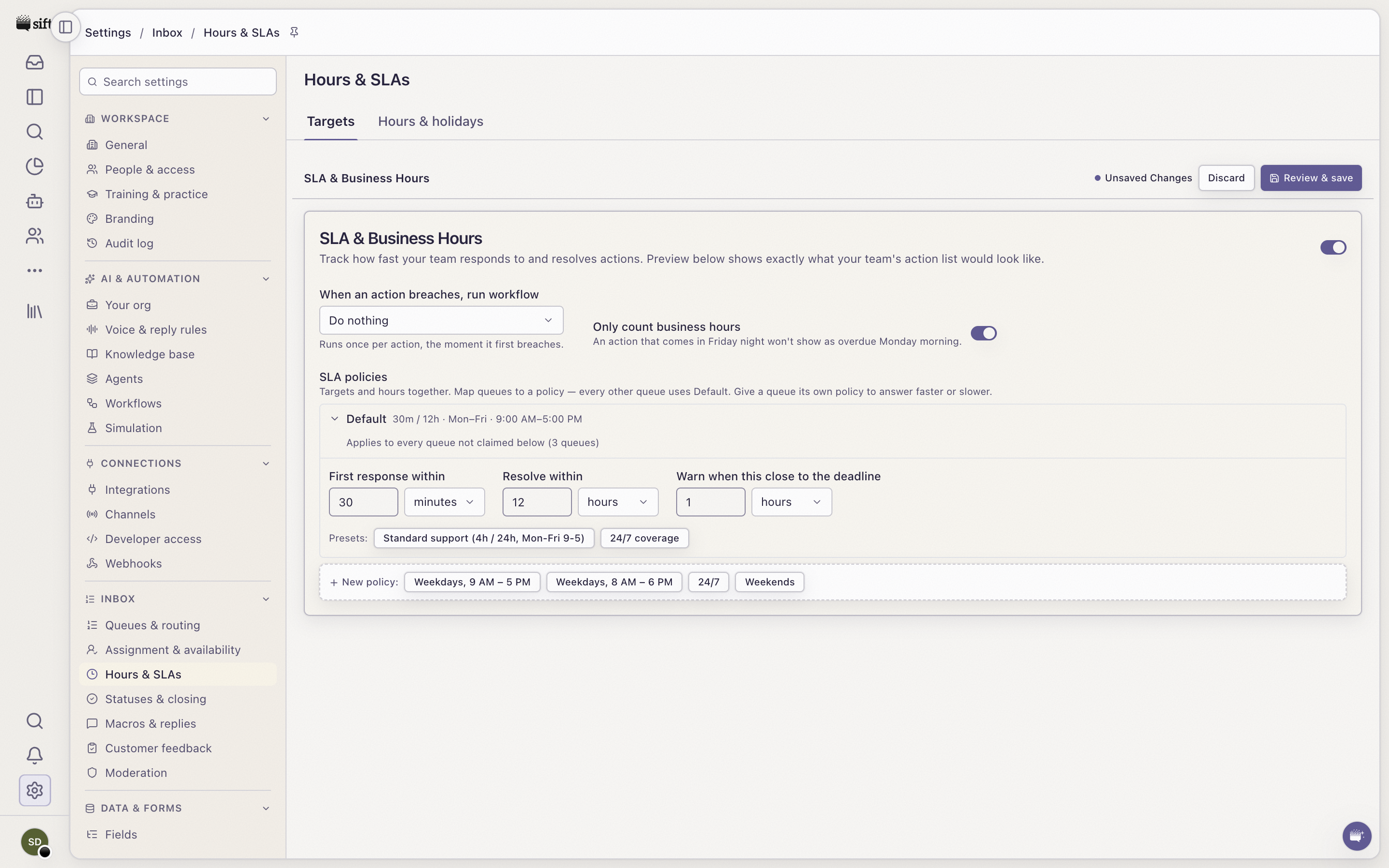
Review your targets and the business-hours setting before you save.
1. Ask an organization admin to open **Hours & SLAs**. In **Hours & holidays**, check the timezone, business hours, and holidays for the queue. In **Targets**, enable the policy, set **First response within** and **Resolve within**, and check whether **Only count business hours** should apply. Use **Review & save** when your policy is ready.
2. Check one case that receives a reply within the target and one that remains open past it. Confirm the due time and the case’s state. For example, with weekday hours from 9:00 to 17:00 and a 30-minute business-hours target, Friday at 16:50 leaves 20 minutes on Monday if there is no holiday.
3. If you set up an escalation workflow, check its result after the case crosses the target. If no alert arrives, check that the case was open when Sift evaluated it and that the workflow is set up.
4. Use **Actions & Support** to review historical performance. Check the report filters separately from the open cases that need attention now.
## Set up reply approval for agents [#set-up-reply-approval-for-agents]
1. Ask an admin to open **People & access → Roles**. For the agent’s role and target queue, select **Reviewed-Write** if the agent should request approval before changes.
2. Check with an agent account that uses this role. Manager and super admin accounts bypass this queue gate. A connected account can also have its own approval requirement.
3. In a test workspace, submit a reply for review. Confirm that it appears in **Review** and has yet to go out. From a manager or queue admin account, check the sender, audience, and full text. If the request is missing, check the agent’s effective queue permission and the sending account’s approval rules.
4. To test rejection, add feedback and check that no reply appears on the source. To test approval on an approved test channel, confirm delivery separately in the conversation.
## Tips [#tips]
- Check a specific case before you use a number on a dashboard to explain an escalation.
- Treat an agent checking an AI draft and a manager approving a pending reply as separate steps.
## Related [#related]
Find queue criteria, priorities, and related controls.Edit, approve, or reject work submitted by your team.Read the response, resolution, and satisfaction reports.