
Agent
Work your first shift in Sift
Find your assigned conversations, check and send a reply, recover from delivery problems, and hand off open work.
Start with a conversation you already own. Read the thread, send a reply when you can, and leave a clear owner for any work that needs to continue.
At a glance
| If you need to | Start here |
|---|---|
| Find your work | Inbox → My Actions |
| Check who will see a reply | Read the composer mode before you send |
| Check who will send it | Check From: when the composer shows a choice |
| Confirm a send | Check the conversation and the delivery state |
| Hand off a case | Leave an internal comment, assign it, and confirm the new owner |
What you're looking at
The inbox shows conversations in the queues you can access. The thread shows what the customer and your team have already said. Open the customer profile for context when it is available.
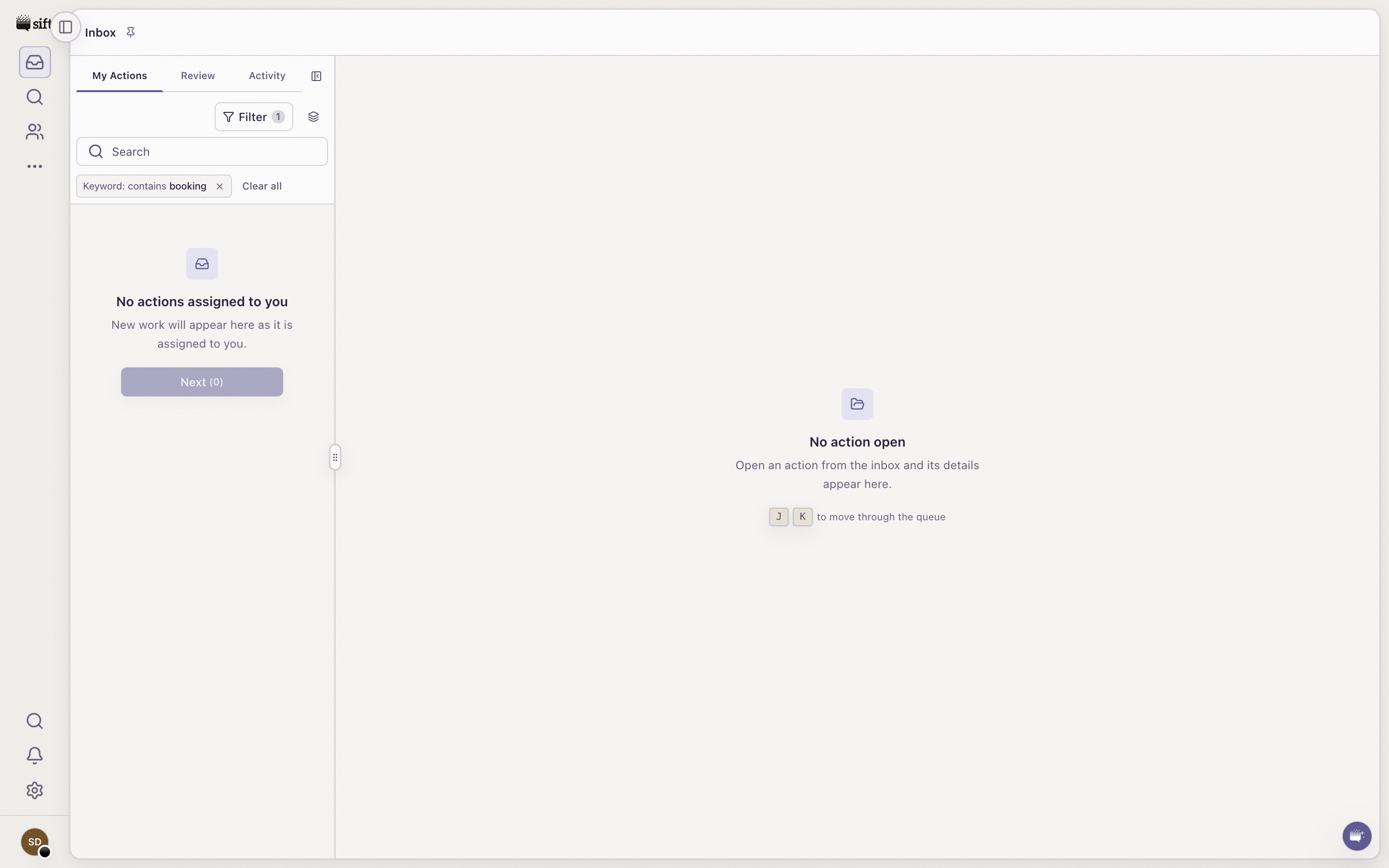
Find conversations assigned to me
- Open Inbox → My Actions for your assigned cases. To find your own work in Activity, open its filters and select Assigned to me.
- Open an assigned conversation and check the queue and status. If the list is empty, check your other filters and queue access before you pick up new work.
- If Next Action or Get Next Action is available, use it to claim the next conversation. Use My Actions to return to a case you already own.
Check the draft and send
- Read the thread and any internal comments. Check that the draft answers the latest question.
- Use Reply for the customer or Comment for your team. If Reply offers more than one delivery mode, check whether it is public or a direct message. An internal comment stays in Sift for your team.
- If you see From:, check the account. If your sender or reply mode is unavailable, read the reason in the composer before you continue.
- Check names, promises, and policy details in the draft. Check the send button. If it says Submit For Review, send the draft to the reviewer. Otherwise, send when ready. A reply pending review has yet to send.
Handle delivery not confirmed
| State | What to do |
|---|---|
| Sending or Syncing | Wait for the state to change. Check the thread before you try again. |
| Not sent | Read the error. Fix the stated problem and use Retry if Sift offers it. |
| Delivery not confirmed | Check the source conversation first. If you cannot confirm delivery, tell your lead and leave the case open. Avoid sending a second copy. |
| The composer says you cannot reply | Read the reason. Use the original platform if Sift provides a link and your team allows it. Ask an admin if an account or permission is missing. |
Hand off an open conversation
- Leave an internal comment with the customer’s request, what you checked, and the next step. For example, “Refund is still pending. Billing needs to confirm the payment date. Customer expects an update Tuesday.”
- Select the receiving queue and assign the teammate who owns the next step. Add a due date for a promised update.
- Use the status your team expects for a handoff. Reopen the case link and check the queue, assignee, and status. If you lose access after moving it, send the case link to the receiving teammate and ask them to confirm.
- Before you sign off, check Assigned to me again for cases that still need an owner or follow-up.
Tips
- Keep account details and policy discussions in an internal comment when the customer should not see them.
- Use Waiting for User when you actually need an answer from the customer. Use your team’s handoff status when another teammate needs to act.