
Sift AI and SiftGPT
Run social reports and manage public comments
Build a weekly feedback report with SiftGPT, check scheduled delivery, and confirm what customers can see after comment moderation.
Use SiftGPT to see what customers are talking about. Check the conversations behind a report before you share it. For public work, confirm the result on the original platform.
At a glance
| Task | What to verify |
|---|---|
| Weekly feedback report | Channels, dates, timezone, and counts |
| Scheduled report | Next run, delivery destination, and receipt |
| Scheduled post | Eligible account, time, and approval state |
| Hide a public comment | The comment’s visibility on the original platform |
| Close a conversation | The case status in Sift |
What you're looking at
SiftGPT answers a question about your connected data. A scheduled agent can run a saved question on a timetable. Use the source links in a report to check examples and the original platform to check what the public can see.
Create a weekly feedback report

- Open SiftGPT. Use the weekly feedback prompt and name your channels, such as Instagram and WhatsApp.
- Specify two complete periods and a timezone. For example, compare the last complete Monday-to-Monday period with the one before it in Pacific time.
- Ask for the count per issue and two conversation links. Keep the filters the same. Check whether each count covers all matching conversations or a sample.
- Open the examples. If a channel has missing days, call that out before reporting a change. Share the chat with teammates who should be able to see it.
Schedule and check delivery
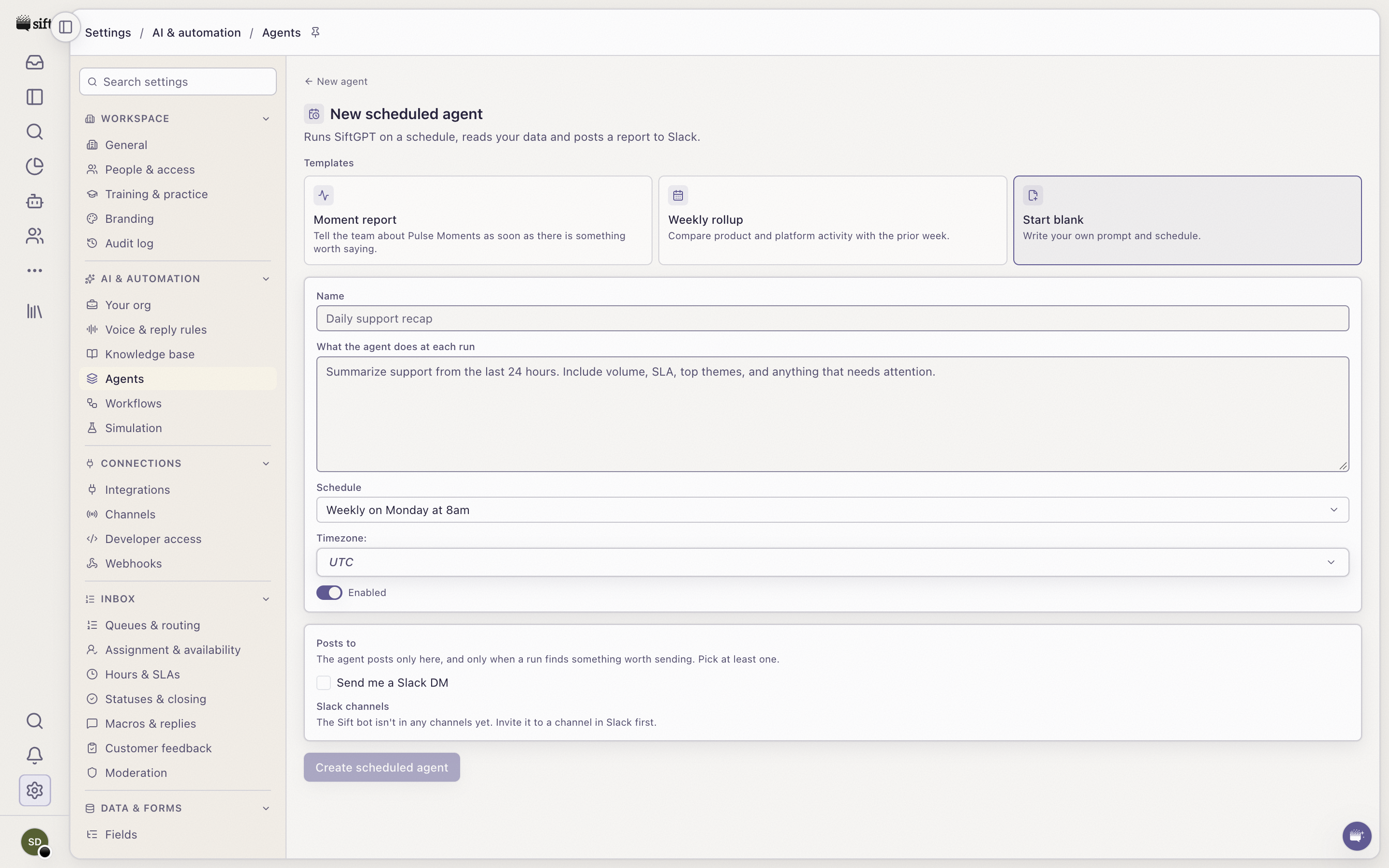
- Open Settings → AI & automation → Agents → New agent, then choose Scheduled agent. Ask a manager or admin if you cannot create one.
- Give it a name and paste the report question. Use relative wording such as “last complete Monday-to-Monday period” so each run uses fresh dates.
- Set the day, time, and timezone. Choose Send me a Slack DM or select an approved Slack channel. Check that Sift is connected and the bot can post in that channel. After you save the agent, use Delivery to manage destinations, including approved email recipients when available.
- Create the agent, check the next run, and use Run now with an approved test destination. Open the run and confirm that the report arrives. If no report arrives, check the run result and destination before you run it again. The agent can skip delivery when there is nothing to report.
Check a scheduled post
Ask your workspace admin where your team creates posts. Use these checks after a post has been set up for an approved account.
- Confirm that your publishing view offers the specific account you want to use. Connected accounts can have different posting permissions.
- Check the target account, scheduled time, timezone, and approval state. If approval is required, wait for the post to show as scheduled.
- If a future post should go out later, change or remove its scheduled time in your publishing view and check its state again.
- After publication, open the post on the original platform. If you must remove a published post, check the original platform. Removing its entry from Sift does not retract it.
Moderate a public comment
- Open the conversation in Sift and locate the specific comment. Check its account and original post before acting.
- If the comment menu offers Hide on platform, use it when your team’s policy calls for hiding. Delete comment on platform removes the comment and cannot be undone. If the action is missing, check with the queue owner or use your approved process on the original platform.
- Check the moderation result in the thread. Use a source view with the right audience to confirm it. A comment can remain visible to its author after a hide, depending on the platform.
- Update the conversation status in Sift separately. If platform moderation fails, keep the case open or hand it off with the source link and the error.
Tips
- Keep published examples anonymous unless the audience has permission to see the original conversation.
- Open a saved dashboard in SiftGPT if teammates need to explore the same numbers over time. Use a chat link for the discussion behind a specific report.