
Content Management
The Content Management category groups every setting that controls the structure your team applies to content as it flows through Sift - how it's labeled, extended, evaluated, moderated, and captured. It has nine pages: Tag Groups (the workspace tag library), Channels (the channels Sift discovers), Custom Fields (extend Sift's data model with your own attributes), Rubrics (AI quality scoring), Moderation Rules (spam and pattern detection), Rulebook (moderation policies and learned trends), Blocked Users (users who cannot create new actions), Forms (hosted intake forms), and Action Forms (wrap-up forms agents fill out on send or close). Together they define the vocabulary, scoring, and shape of every record in your workspace, plus what an agent is prompted for on the way out of a conversation.
Tag Groups
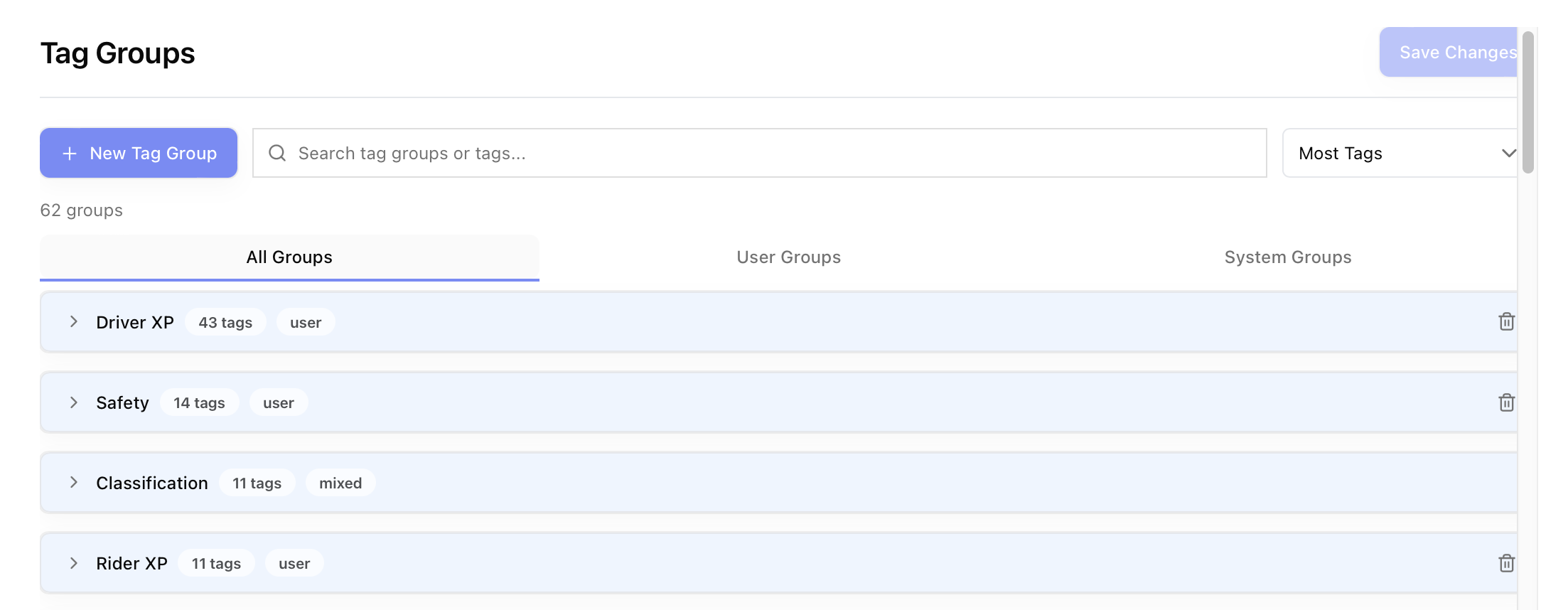
The Tag Groups page is where admins manage every tag in the workspace. Tags categorize records, actions, and users - they show up in Analytics, in filters, on conversations, and as inputs to workflows - and they are organized into groups so related tags stay together in the picker (for example an Issue type group containing Bug, Feature request, and Billing).
The page is a single form covering every group at once, with an unsaved-changes banner that shows exactly what will change before you commit.
Channels
The Channels page shows the channels Sift has discovered across your connected platforms. Search by channel or account, filter by platform or tag, sort by activity, and open a channel preview. Dormant and newly connected channels stay available through separate filters, so inactive channels do not hide the active work.
You can also apply and review tags on channels. Use this page to confirm that Sift found the channels you expect before you build routing, analytics, or saved-search filters around them.
Editing groups and tags
Each group is rendered as an editable card with its name, an add tag action, and the list of tags inside it. For each tag, you can edit:
- Value - The tag label that appears throughout the app.
- Description - A short freeform description of what the tag means.
- AI applicable - A toggle that controls whether Sift's AI is allowed to apply this tag automatically. Tags with AI off are admin-applied only.
Inside a group you can add new tags, rename existing ones, mark a group for deletion, and create new groups inline. Group names are searchable in tag pickers throughout the app.

Reviewing and saving changes
As soon as you make any edit, an amber Unsaved changes banner appears below the header summarizing the diff. Clicking the banner expands it into a structured breakdown - new groups, modified groups (with per-tag changes such as added, removed, renamed, AI enabled / disabled, and description changed), and deleted groups - so you can review the full impact before saving.
A Save now button inside the banner and a Save Changes button in the page header both commit the same diff.

QA agents
QA agents grade closed conversations against your checklist. Open Settings → AI & automation → Batch agents and select the QA tab.
A QA agent has a name, guidance for graders, a scope (queues and platforms), and a list of checks. Each check is one of four types:
- Pass/Fail - Pass earns the check's points. N/A leaves the check out of the score.
- Score - A whole number from 0 to the check's points.
- Critical - Clear or Triggered. A triggered critical check scores the conversation 0.
- Comment - Free text for people. Sift AI does not answer it.
Each check is stored as an action custom field. Drag a check by its grip to reorder it.
When Grade every night with AI is on, Sift AI grades closed conversations in scope once. It saves each answer with its confidence and the message it relied on. A person can grade the same conversation from the QA panel on the action. A person's grade is saved as a new grade, and Sift AI's grade stays.
Quick check grades the newest 5 or 10 closed conversations with the agent and saves nothing, so you can tune the checks first. Open dashboard creates a dashboard from the QA template: pass rate by check, by agent and over time, with Sift AI next to people.
Moderation Rules
The Moderation Rules page configures how Sift catches spam, scams, and other unwanted content automatically. Detections from these rules feed the Analytics → AI Analytics → Moderation dashboard, and the rules can auto-close matching content so it never reaches your team.
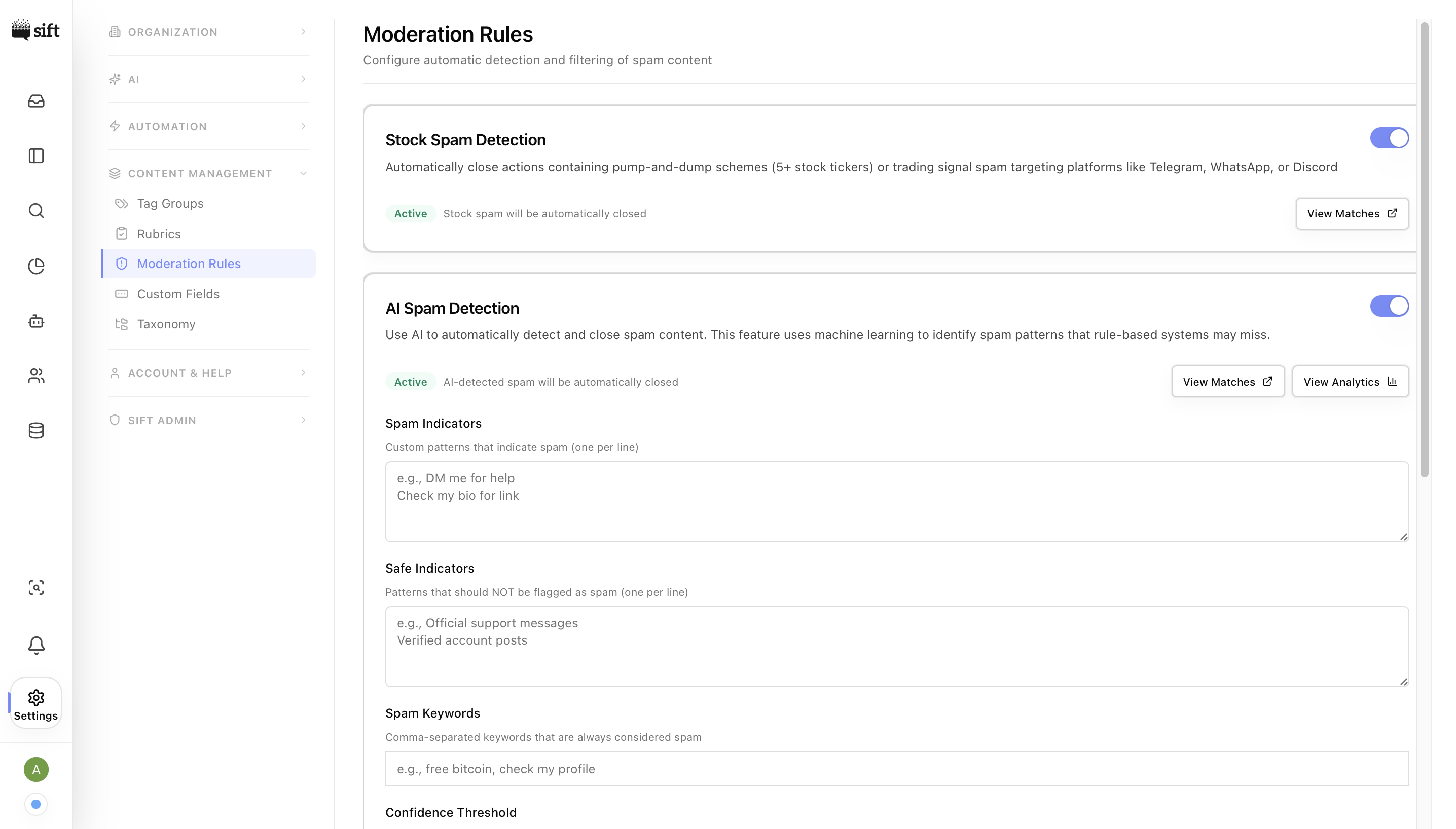
The page contains three configurable cards: Stock Spam Detection, AI Spam Detection, and Pattern Moderation.
Stock Spam Detection
A built-in classifier that catches common spam patterns out of the box. The card has a status badge (Active / Inactive) and a single toggle to enable or disable it. When active, matched content is auto-closed; a View matches link jumps to the rule's detection log.

AI Spam Detection
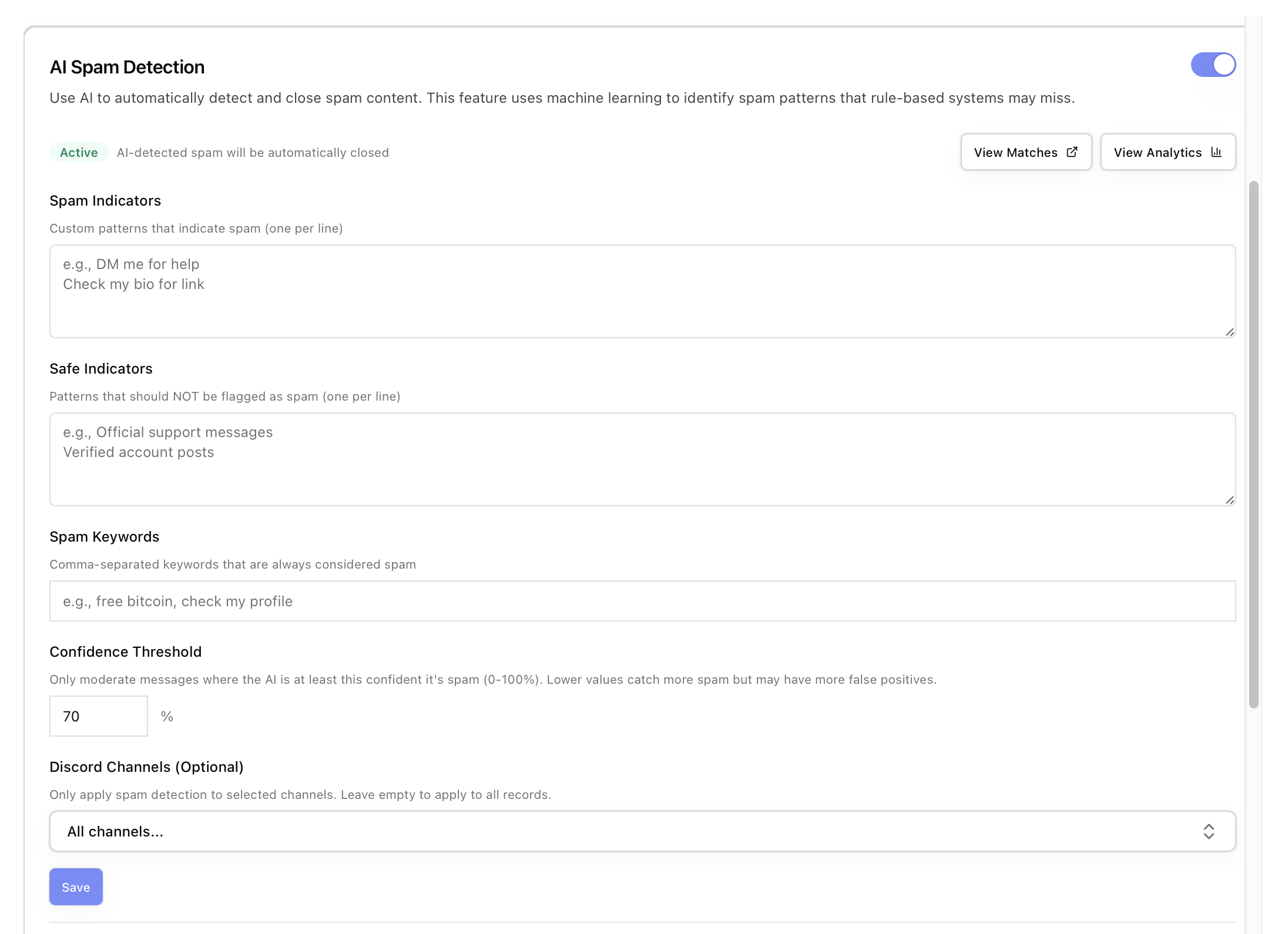
An LLM-based classifier you tune to your workspace. The card has a top-level toggle plus several configuration fields:
- Spam indicators - Free-text description of patterns the AI should treat as spam.
- Safe indicators - Free-text description of patterns that look spammy but should be ignored.
- Spam keywords - Comma-separated keywords that always count as spam.
- Confidence threshold - A 0–100% input controlling how confident the AI must be before moderating. Lower values catch more spam at the cost of more false positives.
- Discord Channels - Optional multi-select to scope detection to specific channels. Empty means "all".
A built-in Spam tester at the bottom of the card runs the classifier against a sample message and reports would moderate / would pass with a confidence percentage and reason - useful for tuning indicators before turning the rule on. View analytics and View matches links cross-link to the moderation analytics dashboard and the rule's detection log.
Pattern Moderation
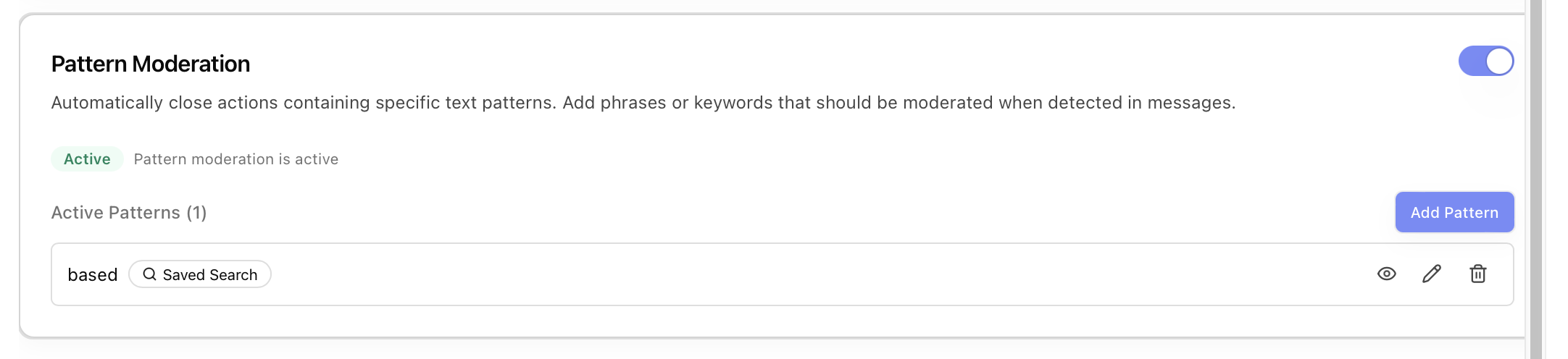
A configurable card for rule-based moderation using regex or substring patterns. Use this for deterministic catches - specific phrases, URLs, or formats - that don't require AI judgment.
Rulebook
The Rulebook is the current policy surface for moderation decisions. It combines team-written Policies with learned Trends in one list. Filter by kind, select a rule to read its guidance and mode, and turn a rule on or off from the list.
Each rule shows its decision mode and hit distribution. The available modes are Hard Reject, Always Escalate, and AI Judgment. The Rulebook is available only when moderation policy is enabled for the organization.
Blocked Users
The Blocked Users page lists users who cannot create new actions. Blocking prevents new actions when that user sends a message; it does not hide actions that already exist. Open a user's action details to block them, or use this page to review the list and unblock a user.
Custom Fields
The Custom Fields page extends Sift's data model with your own organization-specific fields - for example a CRM ID on a user, a region on an action, or an internal tier on an agent. Once defined, custom fields appear on the entity's detail page, become available as filters across the app, and are queryable via the API.
A header introduces the page ("Define and manage custom fields for actions, users, and agents across your organization.") and is followed by three tabs.
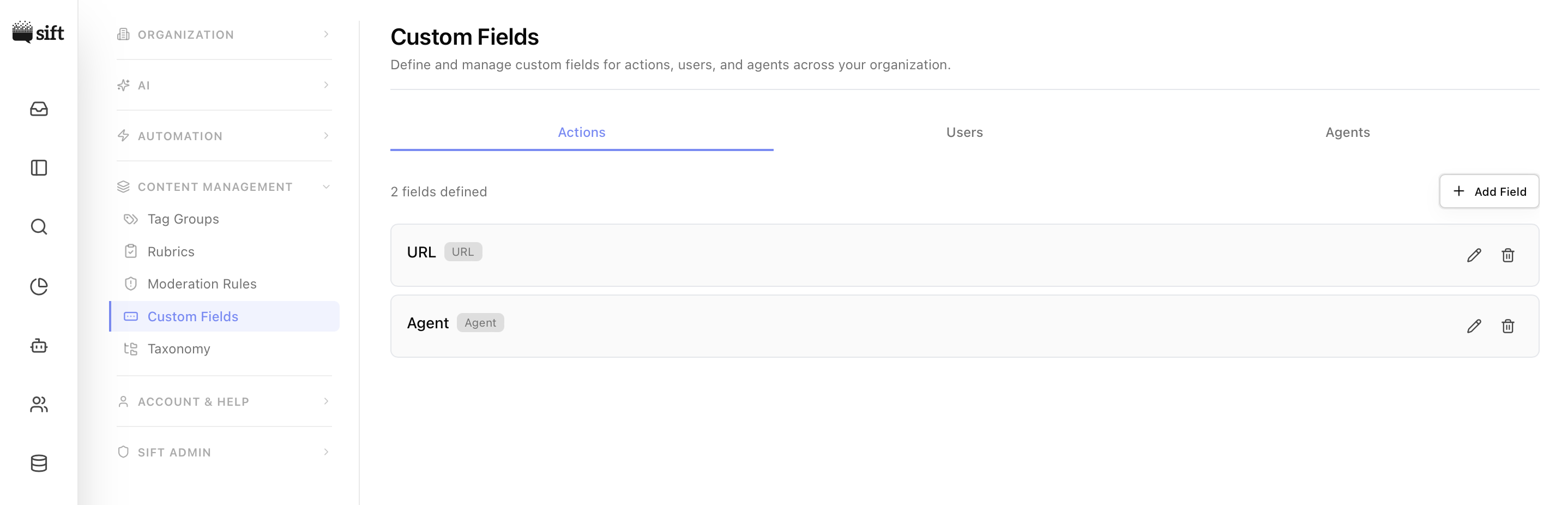
Three entity tabs
Custom fields are scoped to a single entity, so the page splits its work across three tabs:
- Actions - Fields attached to actions.
- Users - Fields attached to user records.
- Agents - Fields attached to your team members.
Each tab shows the list of fields currently defined for that entity, with edit and delete actions per field, plus an Add field button that opens the create dialog.
Field types
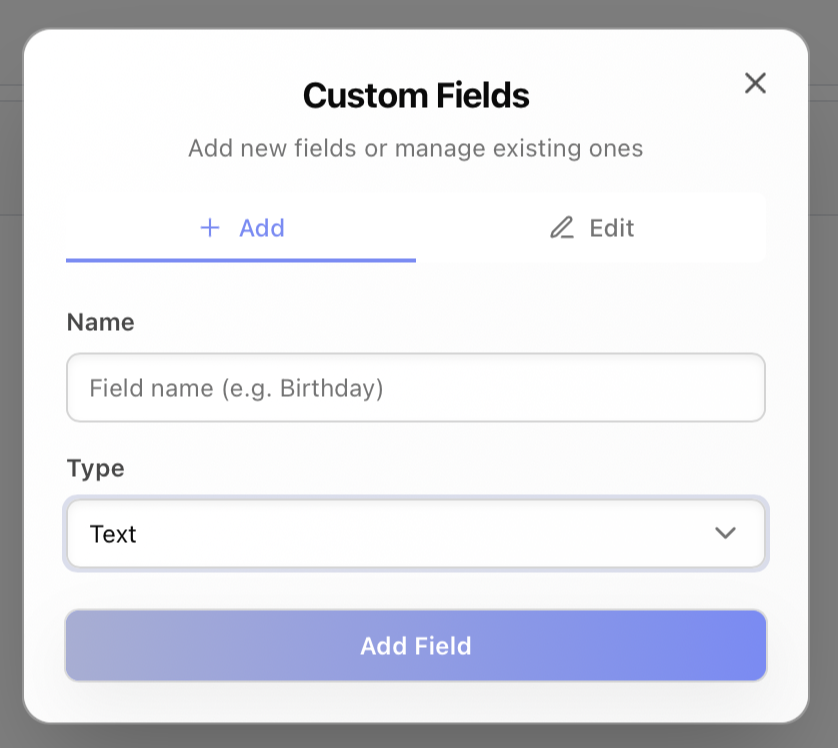
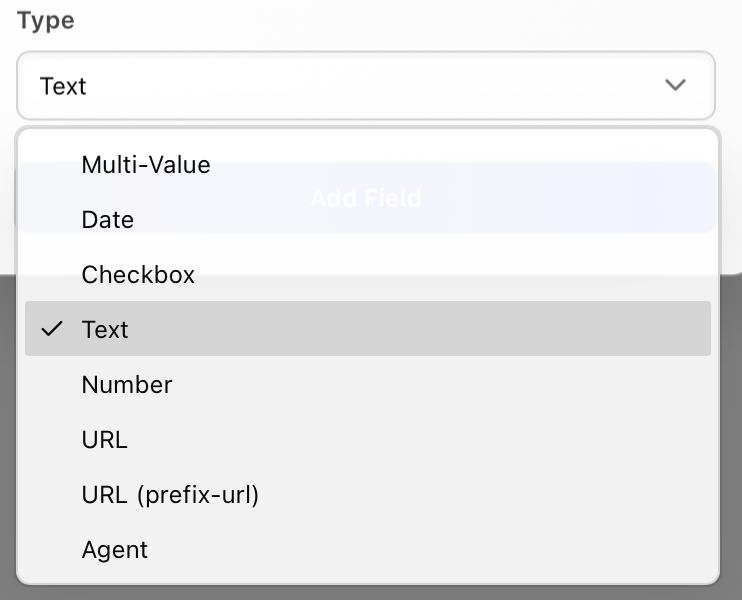
The Add field dialog asks for a field name (snake_case identifier), an optional display name, and a type that determines how the value is captured and displayed:
| Type | Use for |
|---|---|
| Text | Short freeform strings. |
| Number | Integer or decimal numbers. |
| Date | Integer or decimal numbers. |
| Checkbox | A boolean value. |
| URL | Validated absolute URL. |
| URL (prefix-url) | Stores just the suffix; a configured prefix is prepended at display time (e.g. CRM record IDs that always live under the same base URL). |
| Multi-Value | A list of predefined values, configurable as Single-select or Multi-select. |
| Agent | A reference to a teammate. |
| One email address. Validated and stored in lowercase. In a conversation, an email a customer types becomes a one-click chip that saves into this field. | |
| Phone | One phone number. Validated and stored in international (E.164) form. In a conversation, a phone number a customer types becomes a one-click chip that saves into this field. |
Validation prevents reserved keywords, enforces snake_case, and caps field-name length at 50 characters. Fields can be edited, renamed, or deleted from the same dialog.
Forms
The Forms page is where you design custom intake forms to embed as in-product widgets or share as standalone links - for beta enrollment, in-product feedback, feature-request intake, or any structured survey you want routed into Sift.

Forms support short text, long text, dropdown, checkbox, and email fields. Each form gets a shareable public link and an embeddable snippet. Submissions create actions in Sift (or append to an existing thread when an email matches a known contact), and you can route a form's submissions to a specific queue, agent, or team. Forms can be active or paused; pausing stops new submissions without deleting existing responses.
Action Forms
The Action Forms page configures wrap-up forms that prompt an agent for disposition, tags, or notes when they send a reply or close a conversation - the structured version of "what happened here" that's otherwise left to a free-text note, if it gets captured at all. Custom field values are saved to the case as soon as the agent picks them, so closing the form without submitting keeps them. Tags, the note, and the assignee, queue, priority and due date are applied only when the form is submitted. A note field can carry a template: the note box opens with that text, the agent edits it, and it posts as the internal note when the form is submitted.

Building a form
Each form has:
- Name and Description - identify the form in the list; the description is for your team, not shown to agents.
- When it fires - On send, On close, Both, or Manual. A separate Gate macro picks switch also opens the form when an agent picks a matching saved response, before the macro runs. An Ask on queue changes switch opens the form when an agent moves an action to another queue, before the move. Use it with an optional note field to ask agents why they moved an action without blocking the move.
- Scope - optionally restrict the form to specific Queues and Platforms (and, when macro gating is on, specific Macros). On a queue change, the queue scope matches the queue the action moves into. Leave any of them empty to match everything.
- Require before send or close - blocks the gesture until every required field is filled in.
- When to re-open - controls whether the form re-prompts on every matching gesture or only the first one on a given conversation.
Fields
A form is a list of fields an agent fills in - add as many as the disposition you're tracking needs. An Agent preview panel next to the builder shows exactly how the form will look to an agent at send or close, updating live as you add fields.