
Organization
The Organization category covers the workspace itself. It has six customer-facing settings pages: Users & Roles, Integrations, Branding, Audit Log, Org Preferences, and API & Developer. The Integrations page also includes the Health tab for connection and token status.
Users & Roles
Settings → Users & Roles is where admins manage who is in the workspace, what they can do, and how their activity is attributed. A summary card at the top shows the member and pending-invite counts, and the page is organized into three tabs.

Members
The list of everyone in the org, each row showing their name, email, role, and join date. Admins can change a member's role or remove them. The Invite button opens a dialog where you enter one or more email addresses and pick the role each new teammate starts with. They receive an email link to join with the role you assigned.
Roles
A role is a bundle of permissions: what a teammate can see, what they can change, and which queues they can work in. The Roles tab lists every role with its members, the number of queues it can access, and its description. System roles like Super Admin and Manager carry a locked badge and cannot be deleted. Create a role from a template (Agent, Analyst, Read-only viewer) or from scratch, then open any role to edit its permissions, queue access, and members. Roles are the foundation of how work is divided between admins, managers, agents, and analysts.
Identities
Agent identities link the platform handles your team posts from (Discord and others) to your Sift organization, so messages those teammates send are attributed as agent activity in analytics, metrics, and workflows. Map an entire platform role to agents, where every member of that role is treated as an agent and new members sync automatically, or add individual usernames by hand.
Integrations
The Integrations page is the central hub for connecting Sift to the platforms it listens to and replies on. Every connected platform feeds Sift's pipelines - populating the Inbox, the Analytics dashboards, and the Users tab - and disconnecting one stops the corresponding data flowing in.
Connections are presented as a responsive grid of integration tiles. Each tile shows the platform's logo, its name, and a status indicator that flips to "Active" once the platform is connected. Clicking a tile opens that platform's dedicated connection flow, where you can authenticate accounts, choose what to monitor, and configure platform-specific options.

Supported platforms
| Group | Platforms |
|---|---|
| Social | X / Twitter, Facebook, Instagram, WhatsApp, Threads, TikTok, LinkedIn |
| Community | Discord, Discourse, Telegram, Higher Logic |
| Reviews and video | App Store, Google Play, YouTube |
| CX and email | Gainsight, Outlook / Microsoft 365 |
Connect Slack for notifications and the SiftGPT bot. Channel action tracking is optional.
Use the Health tab to review connection status and read-only access. If an OAuth token expires or is revoked, reconnect the affected account from its integration page.
Branding
The Branding page controls the organization colors and logo used on forms, public pages, and briefing renditions. These shared settings keep customer-facing surfaces consistent across the workspace.
Audit Log
The Audit Log is a chronological record of administrative and member activity across the workspace - settings changes, role assignments, queue edits, integration connects and disconnects, and more. Use it to review who changed what and when, for accountability and compliance. Filter by date range and scroll back through the history.
Org Preferences
The Org Preferences page gathers the workspace-wide defaults: timezone, presence and auto-away, internal comment behavior, URL shortening, and dashboard theming.
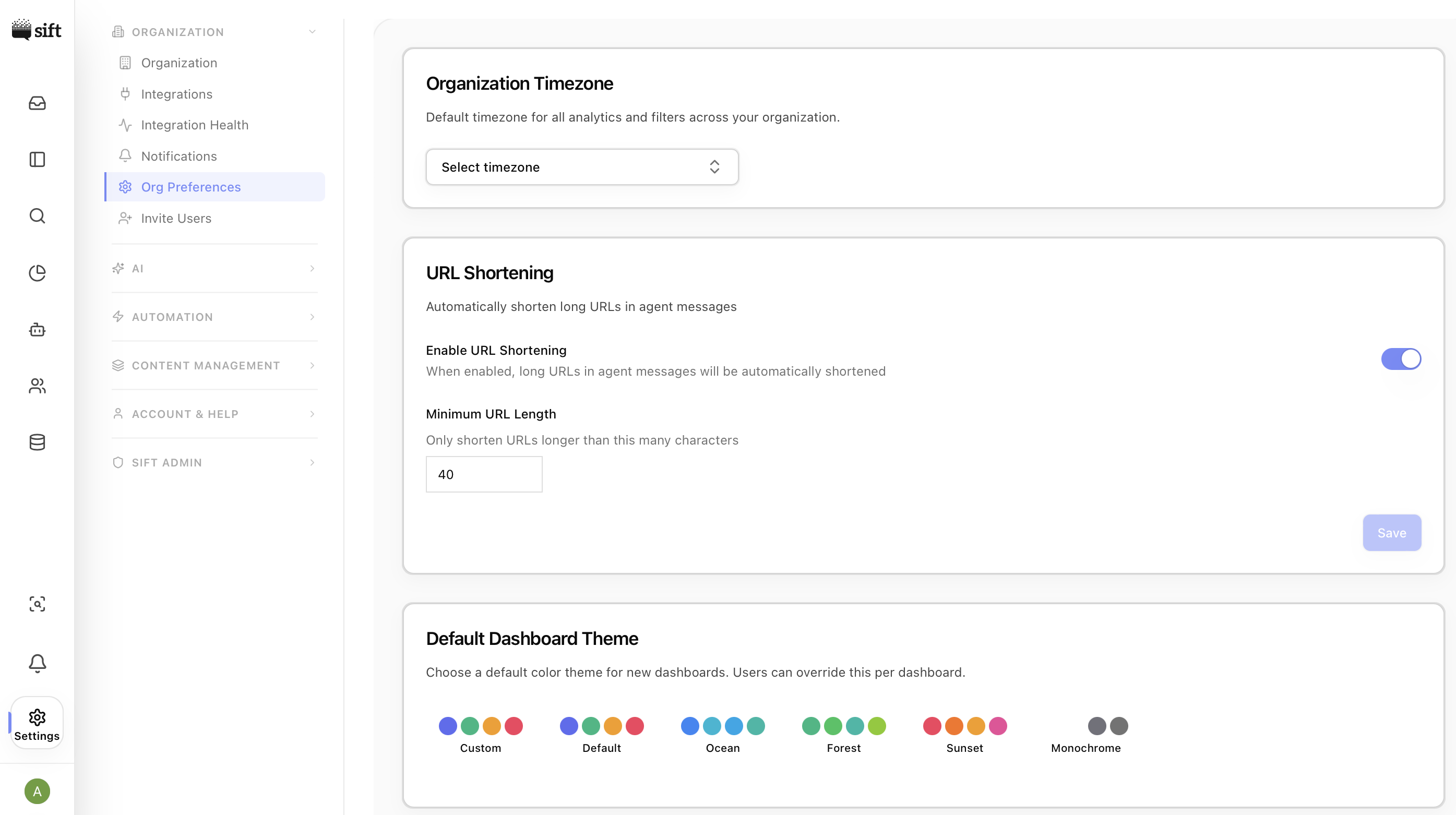
Organization Timezone
A single timezone selector that determines how dates and times are displayed across org-level reporting and scheduling - for example daily roll-ups, charts, and any time-of-day grouping in Analytics.
Changes take effect immediately and are confirmed with a toast.

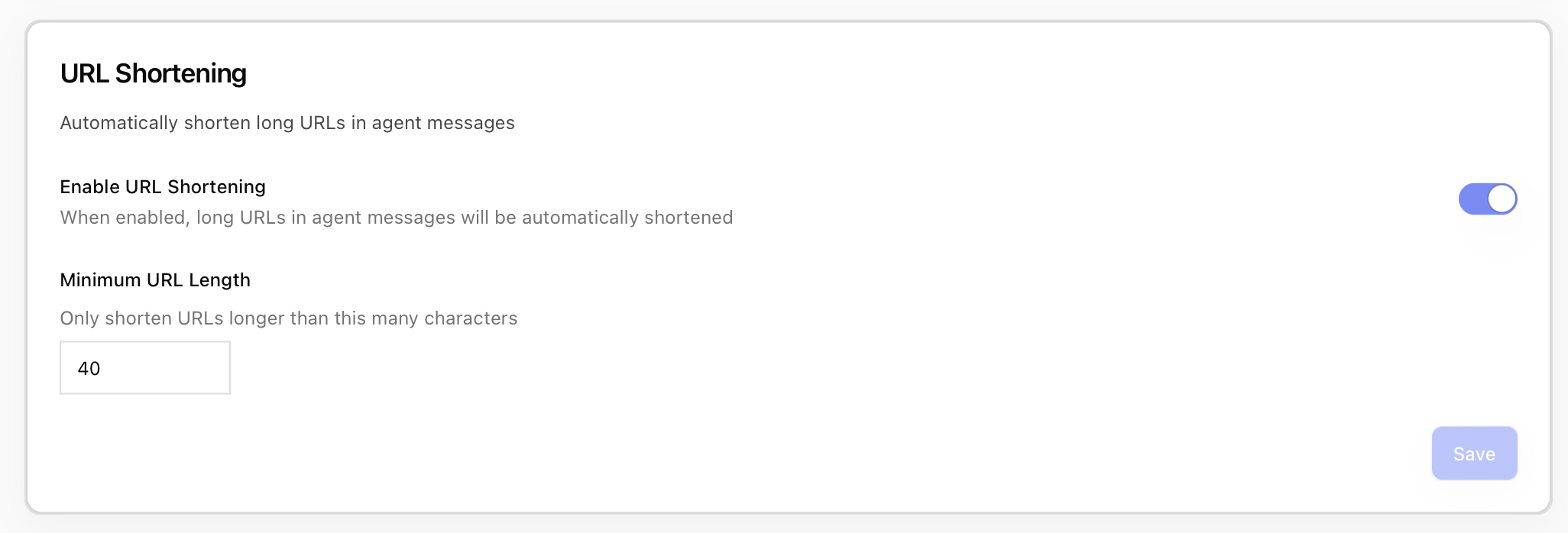
URL Shortening
Controls how outbound replies handle long URLs. Two settings:
- Enable URL shortening - A toggle that turns shortening on or off for the workspace.
- Minimum URL length - A numeric input (20–200) that sets the threshold above which a URL gets shortened. Shorter URLs are left as-is. The field is disabled while the toggle is off.
A Save button at the bottom of the card persists changes once you've made any edits.
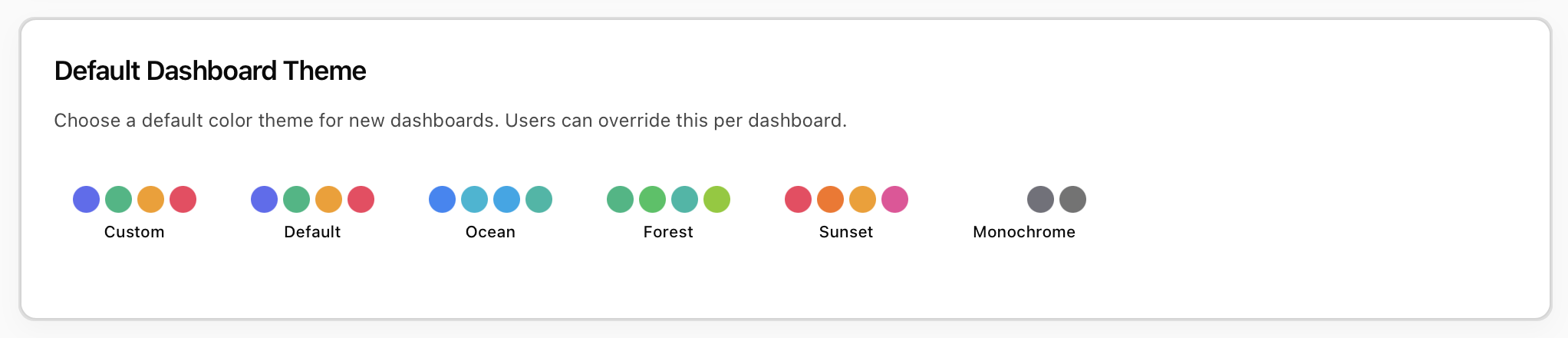
Default Dashboard Theme
A row of color-theme presets that apply to new dashboards created in the workspace. Each preset is a small swatch showing the colors that will be used for charts, with the active preset highlighted. Users can still override the theme on a per-dashboard basis from inside the dashboard builder.
AI-assisted reply behavior - how Sift learns from your team's reply history and what tone it drafts in - now lives in AI Studio, not here. See Voice & Tone and Learned Patterns.
API & Developer
The API & Developer page is where admins generate and manage API keys for programmatic access to Sift. New keys are read-only, shown only once after creation, and can be revoked from the same page. API keys are sensitive credentials that grant access to the workspace via the Sift API. See API Keys and API for the key guide and full reference.