
AI
The AI category, also called AI Studio, configures how Sift's AI understands and acts for your organization. It has six pages: Overview, Voice & Tone, Business Context, Learned Patterns, Triage, and MCP Connections.
Overview
The Overview page holds the Brand Profile - the context every other AI Studio stage, and Sift's filtering and tagging more broadly, grounds on. It's a single form: Industry, Competitors, About Your Business, and What's Worth Acting On. Filling this out thoughtfully is the single highest-leverage thing an admin can do to improve the quality of every downstream AI feature. See Brand Profile for the full walkthrough.
Voice & Tone
The Voice & Tone page teaches Sift how your brand sounds, so every AI-drafted reply reads like your team wrote it - a written description, a "Generate from your sent replies" option, a Things to Avoid list, and a separate override for public posts and comments. Off by default until you turn it on. See Voice & Tone.
Business Context
The Business Context page manages the knowledge-base contexts Sift's AI draws from when drafting replies or answering questions in SiftGPT - your own FAQs, help docs, and product pages. See Knowledge Base for the full walkthrough.
Learned Patterns
The Learned Patterns page is Sift studying your own team: it watches how agents edit AI-drafted replies and proposes new voice rules, which apply only once accepted. See Learned Patterns.
Triage
The Triage page controls how aggressively Sift auto-closes low-relevance content, plus two additional signal-detection tools:
- Auto-Close Strategy - one of four strategies (Disabled, Conservative, Standard (default), Aggressive) controlling how confidently the AI must judge content irrelevant before auto-closing it. DMs are never auto-closed, regardless of strategy.
- User rules - tell Sift what to watch for on people; a built-in impersonator-detection rule ships on by default, and you can add your own.
- Signal flags - tell Sift what to watch for in content; a match applies a signal tag during synthesis for filtering and reporting, without affecting scoring or auto-close.
See AI Filtering for the Auto-Close Strategy in more depth.
MCP Connections
The MCP Connections page lets you connect any Model Context Protocol-compatible AI client - Claude Code, Claude Desktop, ChatGPT, Cursor, Windsurf, Codex CLI, and others - to your Sift workspace. Once connected, the AI client can use Sift's analytics and investigation capabilities directly from inside its own interface, so analysts, engineers, and operators can ask questions like "How many open actions this week?" without leaving their preferred tool.
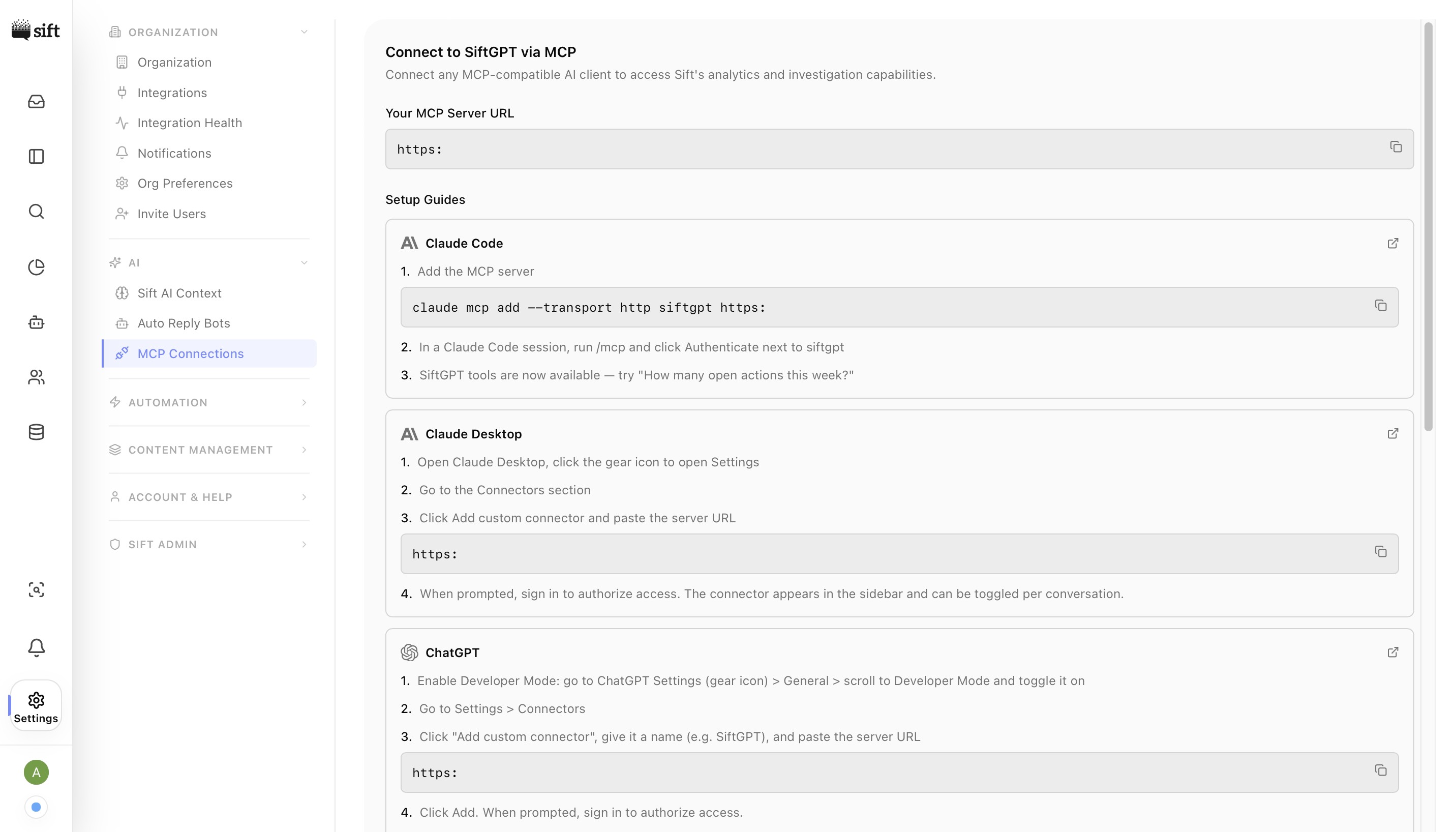
The page begins with a one-line introduction - Connect any MCP-compatible AI client to access Sift's analytics and investigation capabilities - followed by your workspace's unique MCP Server URL in a copyable code block. This URL is the only piece of information any client needs to connect; every setup guide below is just a wrapper around pasting it into the right place.
Setup guides
Below the URL is a card per supported client. Each card has the client's logo and name on the left, a numbered list of steps in the middle, copyable inline commands where appropriate, and a Docs link to the client's official MCP documentation.
The guides currently shipped on the page are:
| Client | What you do |
|---|---|
| Claude Code | Run claude mcp add - transport http siftgpt <URL>, then /mcp and authenticate. |
| Claude Desktop | Settings → Connectors → Add custom connector → paste the URL and sign in. |
| ChatGPT | Enable Developer Mode, Settings → Connectors → Add custom connector → paste the URL → enable per chat. |
| Cursor | Settings → MCP → Add new MCP Server (Streamable HTTP) → paste the URL → authenticate. |
| Windsurf | MCPs icon → Add Streamable HTTP server → paste the URL → authenticate. |
| Codex CLI | codex mcp add siftgpt --url <URL>, then codex mcp login siftgpt. |
Each client follows its own OAuth flow when connecting. After pasting the MCP URL, the client redirects you through Sift's sign-in to authorize access; on success, the client confirms the connection and Sift's tools become available inside its interface. Every request the client makes is scoped to the user that authenticated, so MCP-based access respects the same permissions as the Sift app.